
This will show you how to Install, Configure, and Use SAM Broadcaster.
INSTALLING
1) click next through all the usual installation wizard stuff.
2) when it asks to "Select Database", choose FireBird, with default settings (unless you are experienced, and wish to choose another database).
3) the next screen asks you for a registration key. Enter the serial given in the package.
4) finish installation.
CONFIGURING
5) when SAM starts for the first time, it will ask you if you want to add any soundfx and audio files. DESELECT these, and choose continue.
6) now that SAM is open, it presents you with the following windows, Deck A, Deck B, Playlist, Queue, History, Volume, Clock, Voice FX.
You dont need Playlist or the Clock, so u can close those if you wish, and you need Encoders, so go to Window > Encoders. You can organize your space however you wish, I like this way:
7) Go to your "Encoders" window, and click the "+" sign to add an encoder.
8) in the pop-up window, choose "MP3 (Normal)". In the following window, change the "Format" to "128kb/s, 44.1kHz, Stereo"

9) Now click on the Sever Details tab, and choose the "shoutcast" option. Enter in the Server Details as directed. For the Station Details, change Station Name to "<your name> on Arecibo Radio". Change the website URL to "http://areciboradio.org".
( The third tab in this window "Stream Archive" is not needed, but can be useful. It allows you to save whatever is streamed to your local harddrive, giving you a copy of the stream. I won't go into detail about that here. It is pretty self explanatory anyway.)
You can click "OK" now to close the window.
STREAMING
10) in your Encoders window, select your encoder, and click the "Play" button to start streaming. Click the "Stop" button to stop it.

Always make sure, that you start streaming before playing the first song. Metadata (ID3 tags) is sent through the stream from SAM about the mp3 file, containing informaiton about the song title, artist name, and more. This data is at the beginning of each mp3 file, so if you begin playing the song before you start streaming, that information won't be sent through the stream.
11) the Queue is where you drag and drop songs to be played. You can drag and drop from any media player or straight from windows explorer (there is an option in SAM to load all of your songs into SAM directly, turning it into your library and organizer. I suggest NOT doing this, as SAM can become unstable when a large amount of songs are loaded into it. Also, theres no sense in making another library organized if you already have one done.). You can save your queue as a playlist if you wish, and load it up again later for quick queuing of songs. Your queue will be saved if you exit SAM and open it again.
12) History is simply your history of songs that have been played. If you wish to clear this, close the window, go to Tools > Maintenance > Clear History and click "Yes" for the pop-up dialog box.
13) Deck A and Deck B are where your songs are played. There are two for the purposes of switching/mixing/scratching between the two (if you wish to do that); you are not required to do this.
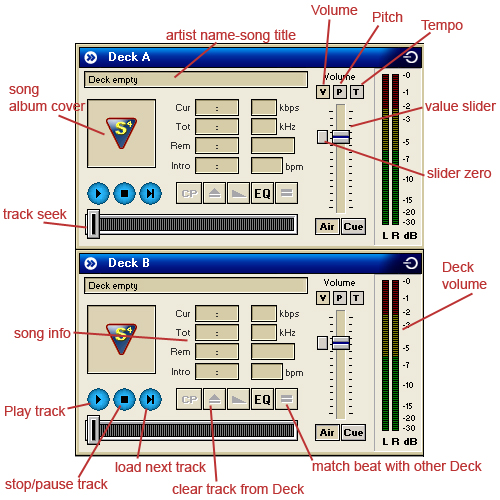
To start streaming a song, click the play button on one of the Decks. It will automatically load the next song in the Queue and play it. By defualt (Play Queue, or Auto DJ Mode), the other Deck will load the next song near the end of the previous, and play it when the first song runs out, allowing you to sit back and not worry about dead air between tracks.
Important, do not change the Volume of the Decks, unless the volume of the actual mp3 file is either too low, or too high (and even if it is, it is frowned upon to change the volume). This is because raising the volume will make it Clip (when the volume of the input source is louder than the output, compressing the sound into a single frequency), and affect the quality of the song.
14) Voice FX window is for use of a mic during streaming. The "config" button will open a dialog that allows you to choose which soundcard (if you have multiple) will be used for a mic. Again, do not change the volume of the "Music" slider. The "Mic" slider, however can be changed to each persons desire, due to differing volumes of mics. When using the mic, either hold down the "Press to talk" button, or click the "Lock talk" button for extended periods of time.
15) the Volume window controls how you hear the stream. This window does not affect the stream itself, only your side. So if you want to stream, but dont want to listen to it, either lower the volume on this window, or click the "Air" button off. Use this ONLY to silence the stream for yourself. Use no other volume sliders, as those will actually affect the stream ( unless that is intentional).
OTHER THINGS
Auto DJ Mode will play through the Queue, and then when that is finished, will play through the history. Play Queue mode, will only pay the Queue, and when finished, will stream nothing, but you will still be connected to the stream, not allowing anyone else to connect. In Manual DJ mode, you must press Play on the Decks every time you want to play a song; it will not play it automatically (suggested for advanced users only).
-------------
SAM Errors
Always pay attention to your encoders window in SAM. It displays info about your encoder format,
whether or not you are streaming, how long this streaming session has lasted, and any other errors.
There are a few errors that you should be aware of.
(200): Stream is occupied. Find out who is on and arrange when he/she will get off and you can get on.
(10054): When resetting your stream this error will show up. Shutdown SAM and wait about 1 or 2 minutes
before restarting.
(10060): Not connecting to stream host. Your stream details are wrong, check/fix them and try again.
(Look for a possible "space" somewhere in the server ip or password. That will cause this error.)
(10065): Your cable or Internet is unplugged from your system, or your stream details are wrong.